
Sharing your project: Upload Access
Upload Access allows Team Members to invite Contributors to add media to a Project.
This is different from sharing a Project for viewing or review. Contributors are invited to upload media, not to browse all Project content. By default, Contributors can add media and folders anywhere in the Project, but you can limit their upload access to specific folders if that works better for your workflow.
Use Upload Access when someone outside your core Project team needs to submit, deliver, or contribute files to a Project.
When to use Upload Access
Upload Access is best for workflows where someone needs to add media to a Project without being added as a Team Member.
Use Upload Access for:
- Vendor delivery
- Production uploads
- Post-production collaboration
- Asset collection
- Contributor submissions
- Internal team uploads
- External partner uploads
- Marketing or promotional asset delivery
Upload Access is useful when you need to collect media from contributors while keeping the rest of the Project controlled.
How Upload Access works
When you add someone with Upload Access, they are added as a Contributor.
A Contributor can upload media to the Project according to the Access Type and folder access you assign. Unlike Reviewers, Contributors only see the media they have uploaded. They do not automatically gain access to view or review all media in the Project.
Depending on their Access Type settings, Contributors may be able to see part or all of the Project’s folder structure so they can place uploads in the correct location.
Each Upload Access invitation includes:
- Contributor email address
- Access Type
- Folder access, if specified
- Email invitation to join the Project
Unlike Reviewer access, Contributor upload access does not use a set access window.
Add a Contributor
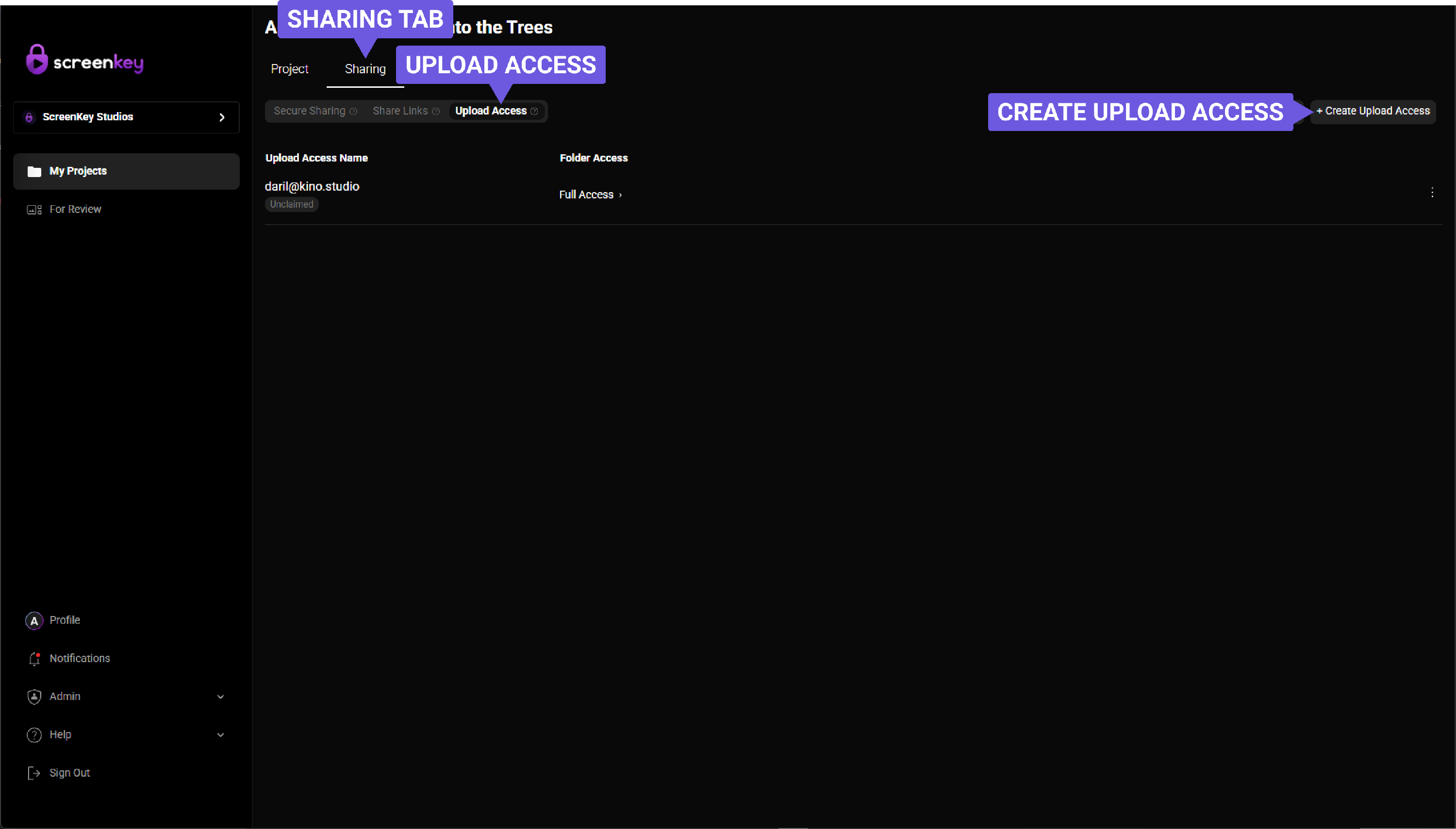
To give someone Upload Access:
- Open the Project.
- Select the Sharing tab.
- Choose Upload Access.
- Enter the Contributor’s email address.
- Select Create Upload Access
- Choose the Contributor’s Access Type.
- Select specific folders, if you want to limit where the Contributor can upload.
- Send the invitation.
The Contributor will receive an email invitation to join the Project.
Choose an Access Type
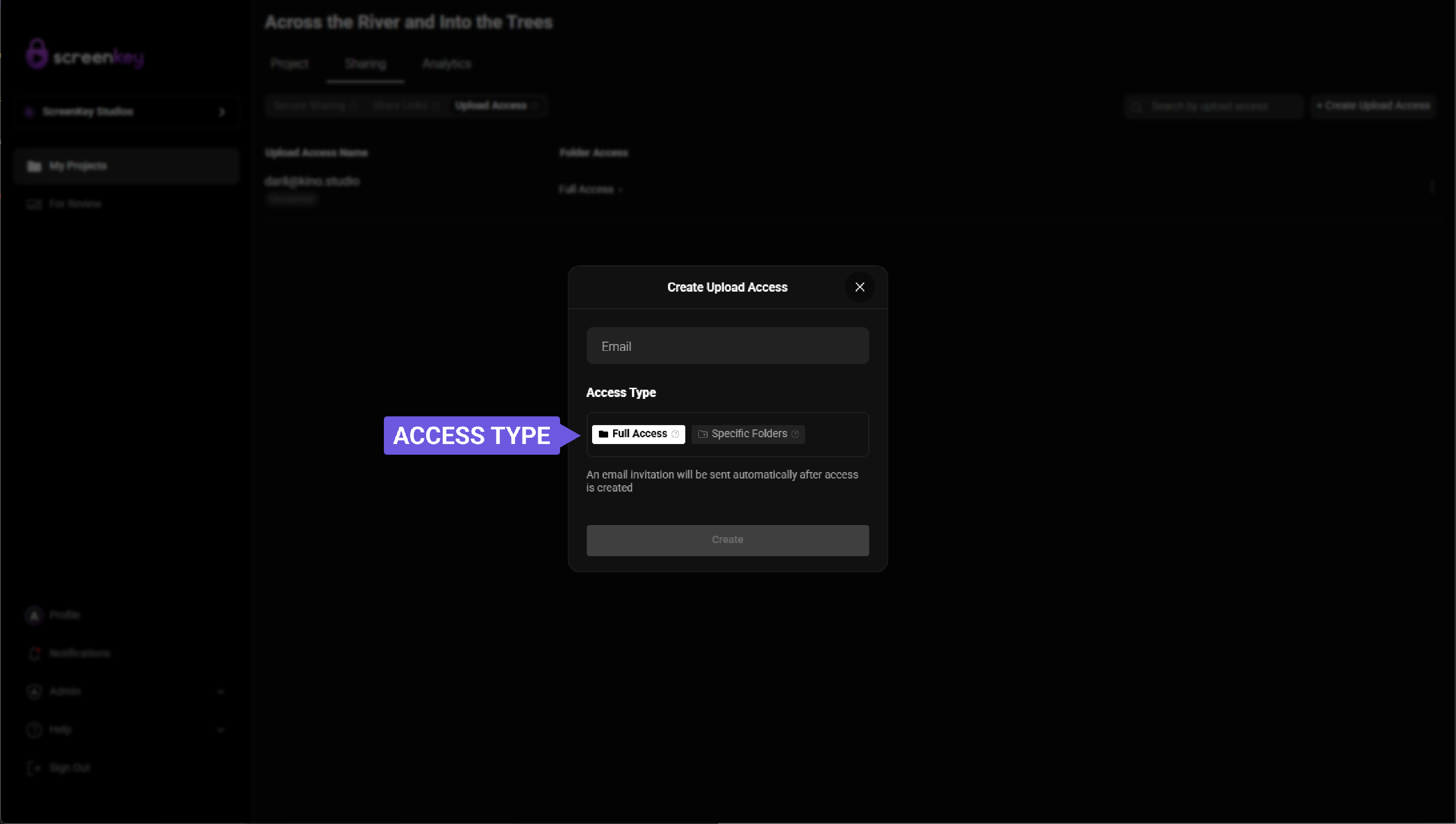
When adding a Contributor, select the Access Type that matches what they need to do.
The Access Type determines how the Contributor can interact with the Project. Depending on the settings you choose, the Contributor may be able to upload media, create folders, and see part or all of the Project folder structure.
Choose the least amount of access needed for the Contributor to complete their work.
Folder access
By default, Contributors can add media and folders anywhere in the Project.
If your workflow requires more control, you can specify which folders the Contributor can access. This is useful when different Contributors are responsible for different types of media, departments, deliverables, or stages of production.
For example, you may want to limit a Contributor to:
- A vendor delivery folder
- A VFX folder
- A sound folder
- A color review folder
- A marketing assets folder
- A specific episode or title folder
- A regional delivery folder
Limiting folder access helps keep uploads organized and reduces the chance that files are added to the wrong location.
What Contributors can see
Contributors have a limited view of the Project.
Unlike Reviewers, Contributors only see the media they have uploaded. They cannot see other Project media unless they have been granted separate review or viewing access.
Depending on their Access Type settings, Contributors may be able to see part or all of the folder structure. This allows them to upload files into the correct location without giving them access to view all Project content.
Email invitations
When a Contributor is added, ScreenKey sends them an email invitation to join the Project.
The Contributor uses the invitation to access the Project and upload media according to the permissions you assigned.
Unlike Reviewer invitations, Contributor access does not require a Sharing Window. Contributor upload access remains available until it is revoked.
Revoke Upload Access
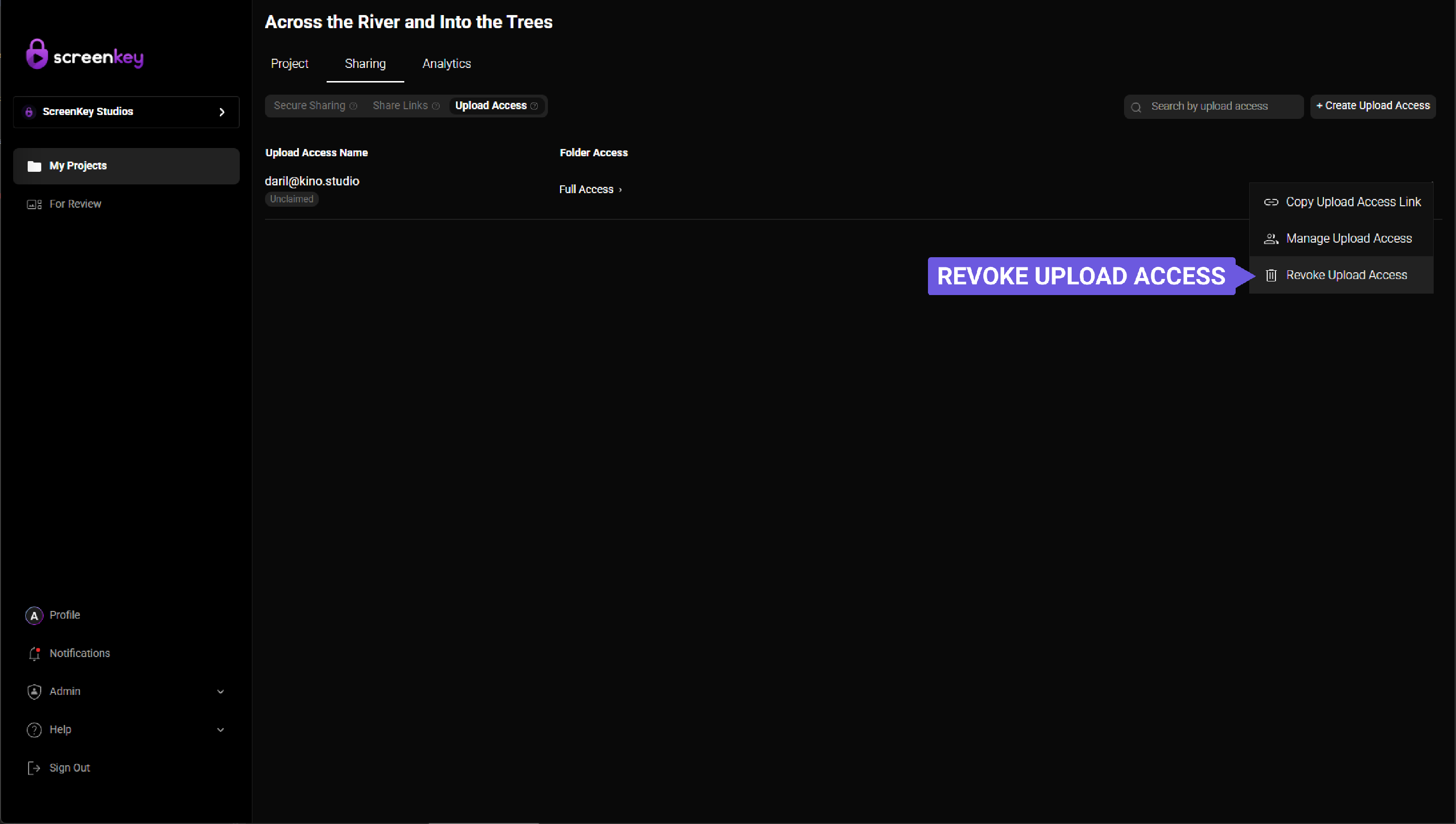
If you need to remove a Contributor’s upload access, you can revoke it from the Upload Access area.
To revoke Upload Access:
- Open the Project.
- Select the Sharing tab.
- Go to Upload Access.
- Find the Contributor’s access record.
- Open the ellipses menu to the right of the Contributor’s record.
- Select Revoke Upload Access.
After upload access is revoked, the Contributor can no longer upload media to the Project.
Upload Access vs. Reviewer access
Upload Access is different from Reviewer access.
Reviewers are invited to view, evaluate, download, or provide feedback on media, depending on the access they are given.
Contributors are invited to upload media. They only see the media they have uploaded and do not automatically receive access to view the rest of the Project.
| Access type | Best for | What the user can do |
|---|---|---|
| Reviewer access | Watching, reviewing, approving, or providing feedback on media | View media and interact based on reviewer permissions |
| Upload Access | Submitting or delivering media | Upload media according to assigned access settings |
A user may need both Reviewer access and Upload Access if they need to upload files and also review other media in the Project.
Best practices
Before giving someone Upload Access, confirm that:
- The Contributor’s email address is correct
- The Access Type matches what they need to do
- Folder access is limited if needed
- The Project folder structure is ready for uploads
- The Contributor should not also need Reviewer access
- Upload access should remain active until manually revoked
Use folder-specific access when you want to keep uploads organized or when Contributors should only interact with a specific part of the Project.
Summary
Upload Access allows Team Members to invite Contributors to add media to a Project.
By default, Contributors can add media and folders anywhere in the Project, but Team Members can limit access to specific folders. Contributors only see the media they have uploaded, though they may be able to see part or all of the folder structure depending on their Access Type settings.
Use Upload Access when vendors, collaborators, internal teams, or external partners need to submit or deliver files into a Project.