
Sharing your project: Share Links
Share Links are the easiest way to share a Project in ScreenKey, but they are also the least secure sharing option.
Unlike Secure Sharing, Share Links are not tied to a specific invited Reviewer. Anyone who has the Share Link can use it, including people who do not have ScreenKey accounts. Because of this, Share Links should only be used when ease of access is more important than person-specific security.
Use Share Links when you need to provide quick, low-friction access to a Project and you are comfortable with anyone who has the link being able to access it.
When to use Share Links
Share Links are best for workflows where access needs to be simple and fast.
Use Share Links when you need to:
- Share access without inviting each Reviewer individually
- Provide access to people who may not have ScreenKey accounts
- Send a link through your own email, messaging, or distribution process
- Reduce friction for Reviewers
- Share lower-risk content
- Support informal or broad review workflows
For sensitive screeners, confidential review, sales distribution, awards campaigns, executive review, or any workflow where access must be tied to a specific person, use Secure Sharing instead.
How Share Links work
A Share Link is a general access link for a Project.
When a Share Link is created, it can be copied and sent through your preferred communication method. Anyone who receives the link can use it, subject to any settings you apply, such as an Access Window or password.
Each Share Link requires:
- A custom name
- An Access Window
- Confirmation of the Share Link security disclaimer
Depending on your Project settings, a Share Link may also include:
- A password
- A custom digital watermark
Share Link security disclaimer
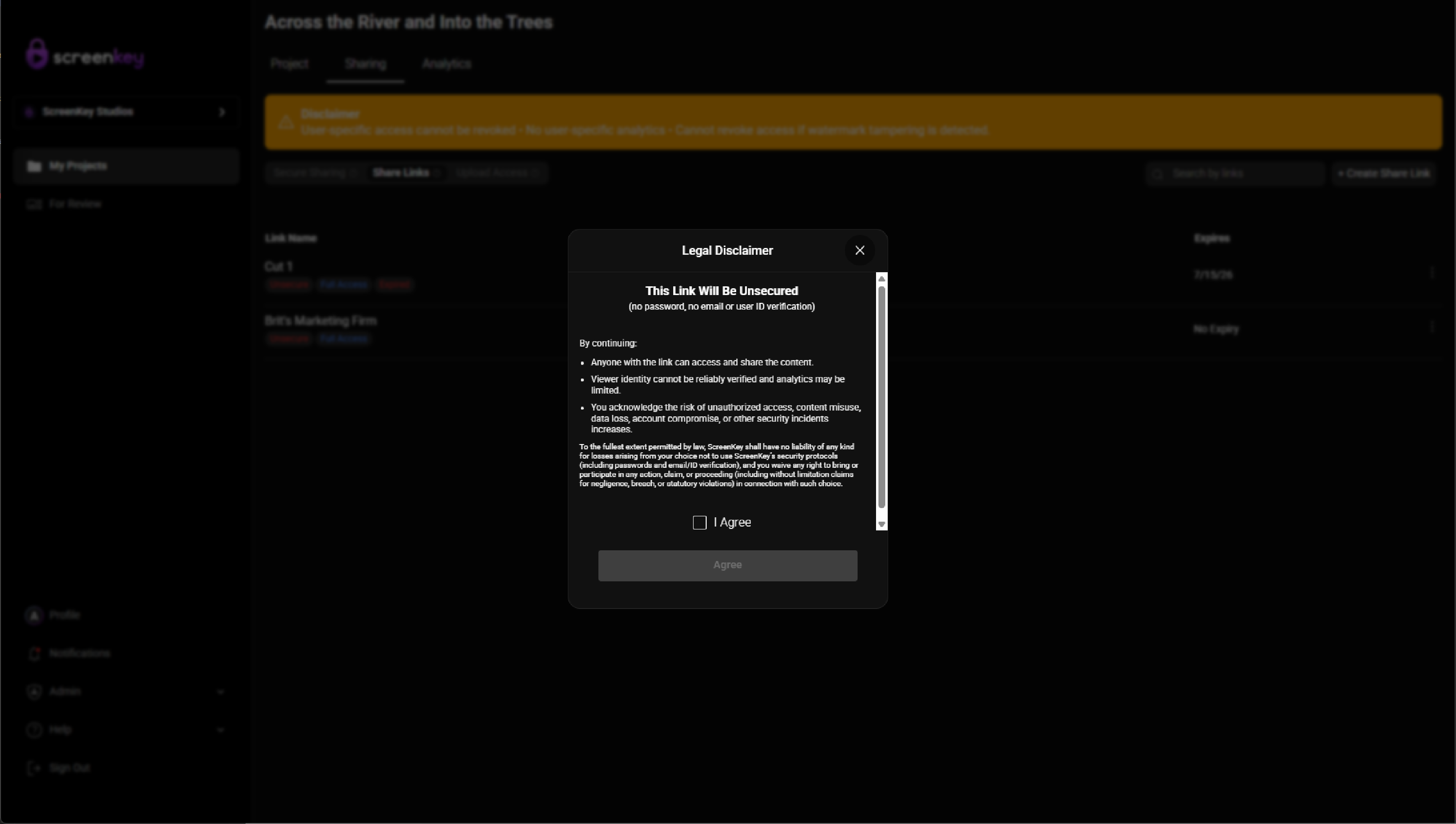
Because Share Links are less secure than Secure Sharing, ScreenKey displays a security disclaimer when a Share Link is first created.
This disclaimer explains how using a Share Link may compromise security. For example, a Share Link can be forwarded, copied, or shared with additional people outside your intended audience.
After reviewing the disclaimer, confirm that you understand the risks before continuing.
Once confirmed, the Create Share Link modal will open.
Create a Share Link
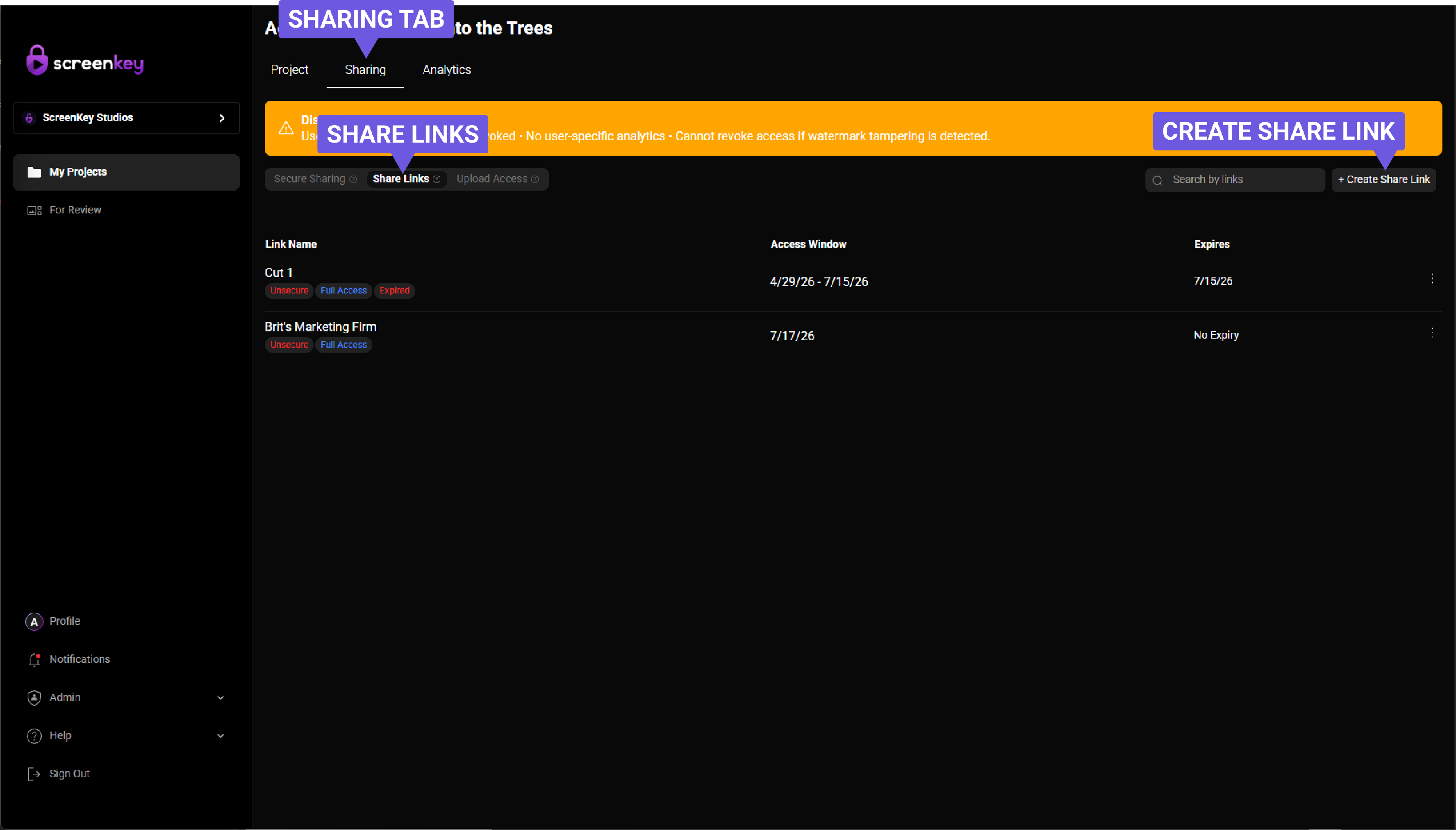
To create a Share Link:
- Open the Project you want to share.
- Select the Sharing tab.
- Choose Share Links.
- Review the Share Link security disclaimer.
- Confirm that you understand the security risks.
- In the Create Share Link modal, enter a custom name for the Share Link.
- Set the Access Window.
- Add a password, if needed.
- Customize the watermark, if needed and available.
- Create the Share Link.
After the Share Link is created, you can copy it and send it through your preferred email, messaging, or distribution process.
Share Link names
Each Share Link requires a custom name.
The Share Link name helps Team Members identify and manage the link later. It can also be used as the default digital watermark if digital watermarking is enabled for the Project.
Choose a name that clearly describes the purpose or audience for the link.
For example:
- Sales Preview Link
- Festival Review Link
- Internal Review Link
- Buyer Screening Link
- Press Preview Link
- Partner Access Link
Although a Share Link has one custom name, it can be sent to and used by many people.
Access Windows
ACCESS WINDOW
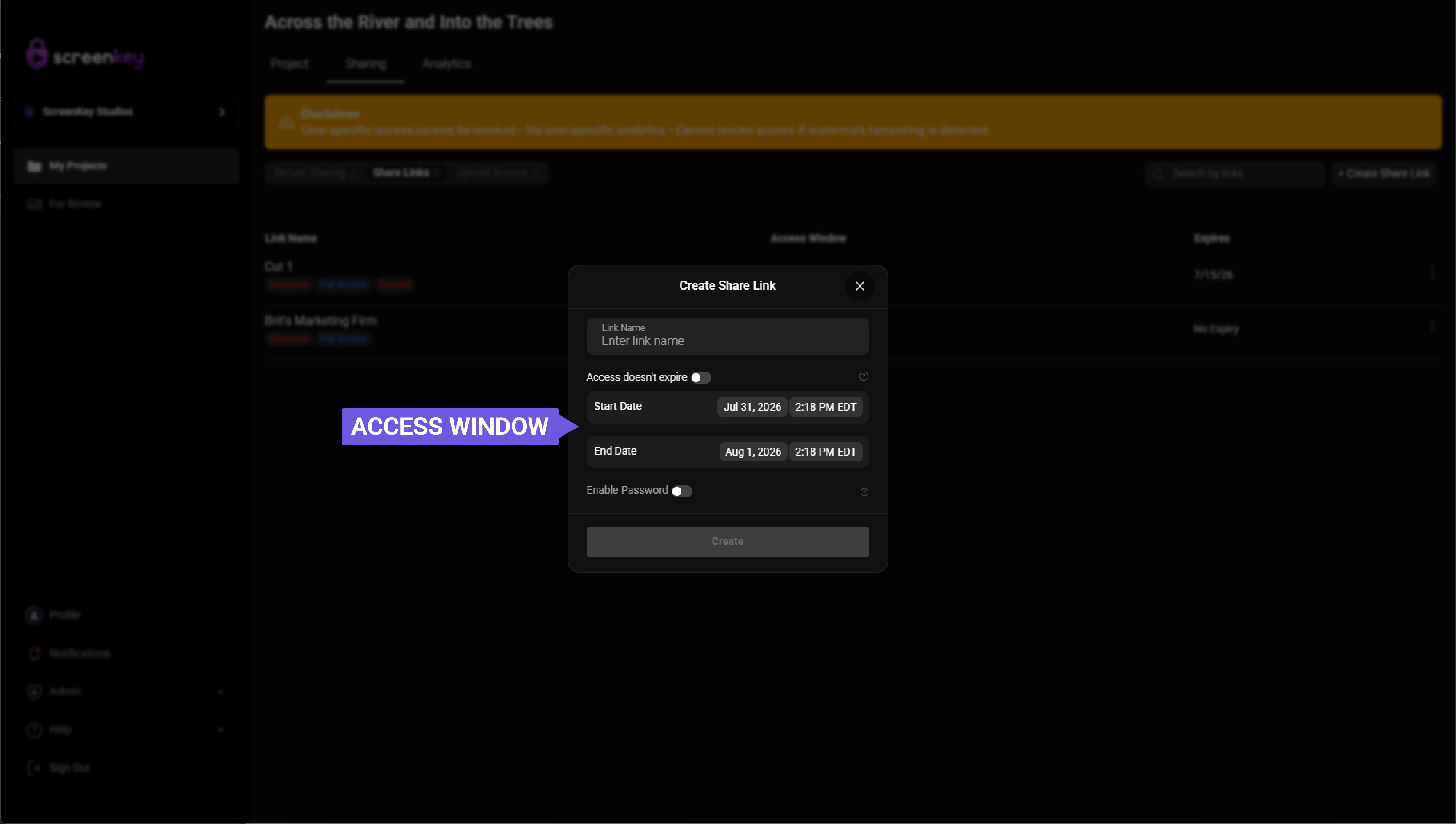
Each Share Link requires an Access Window.
The Access Window controls when the Share Link can be used. This allows you to limit access to a specific period of time.
An Access Window can be used to support:
- A limited review period
- A sales or market window
- A festival or awards screening period
- A temporary internal review window
- A future access period
Once the Access Window ends, the Share Link will no longer provide access.
Password protection
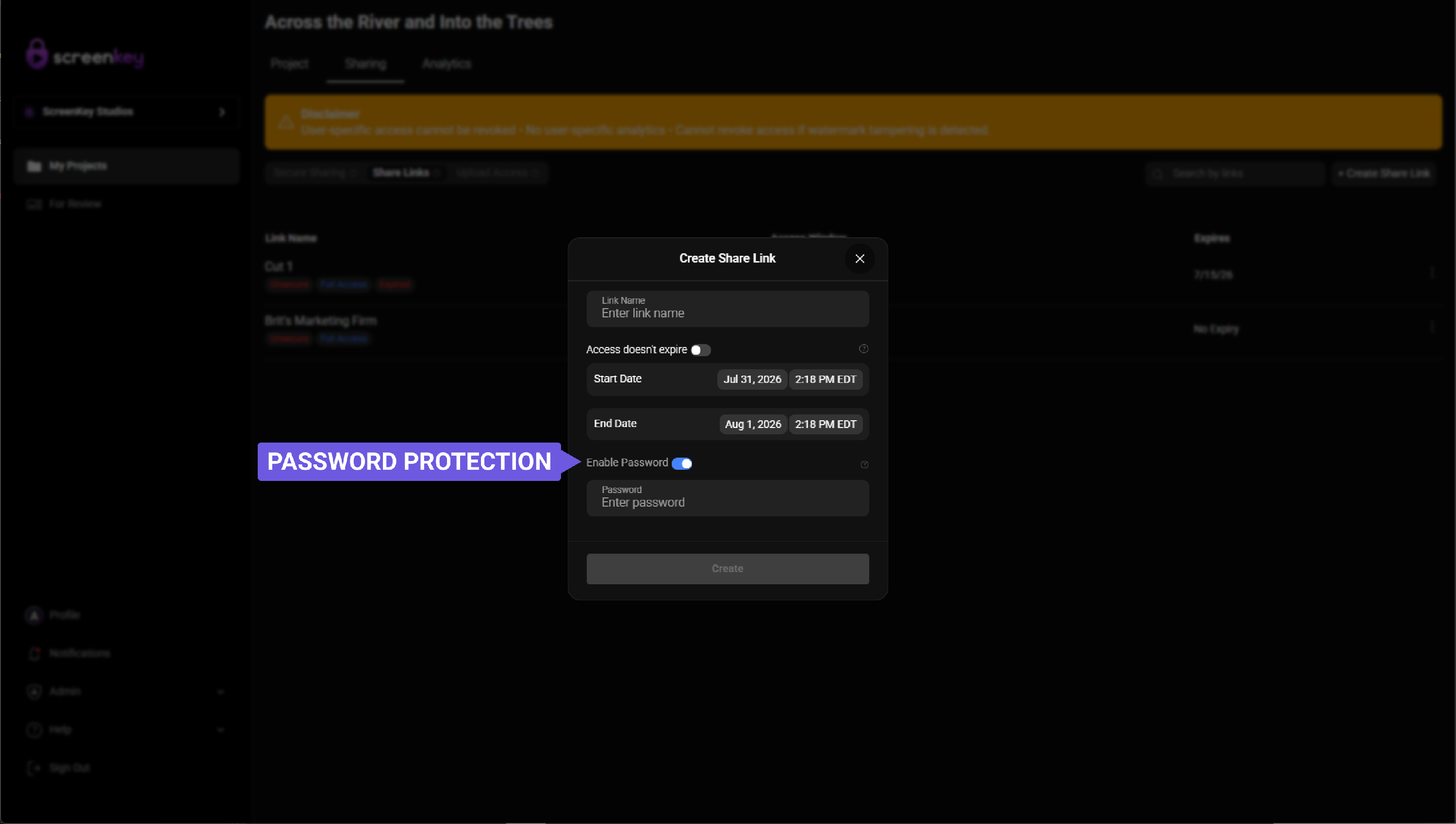
For an additional layer of security, you can add a password to a Share Link.
When password protection is enabled, anyone who opens the Share Link must enter the password before they can access the Project.
Password protection can help reduce casual or accidental access, but it does not make a Share Link as secure as Secure Sharing. The link and password can still be forwarded or shared with others.
Use a password when you want to make Share Link access slightly more controlled, but use Secure Sharing when access needs to be tied to a specific person.
Digital watermarking
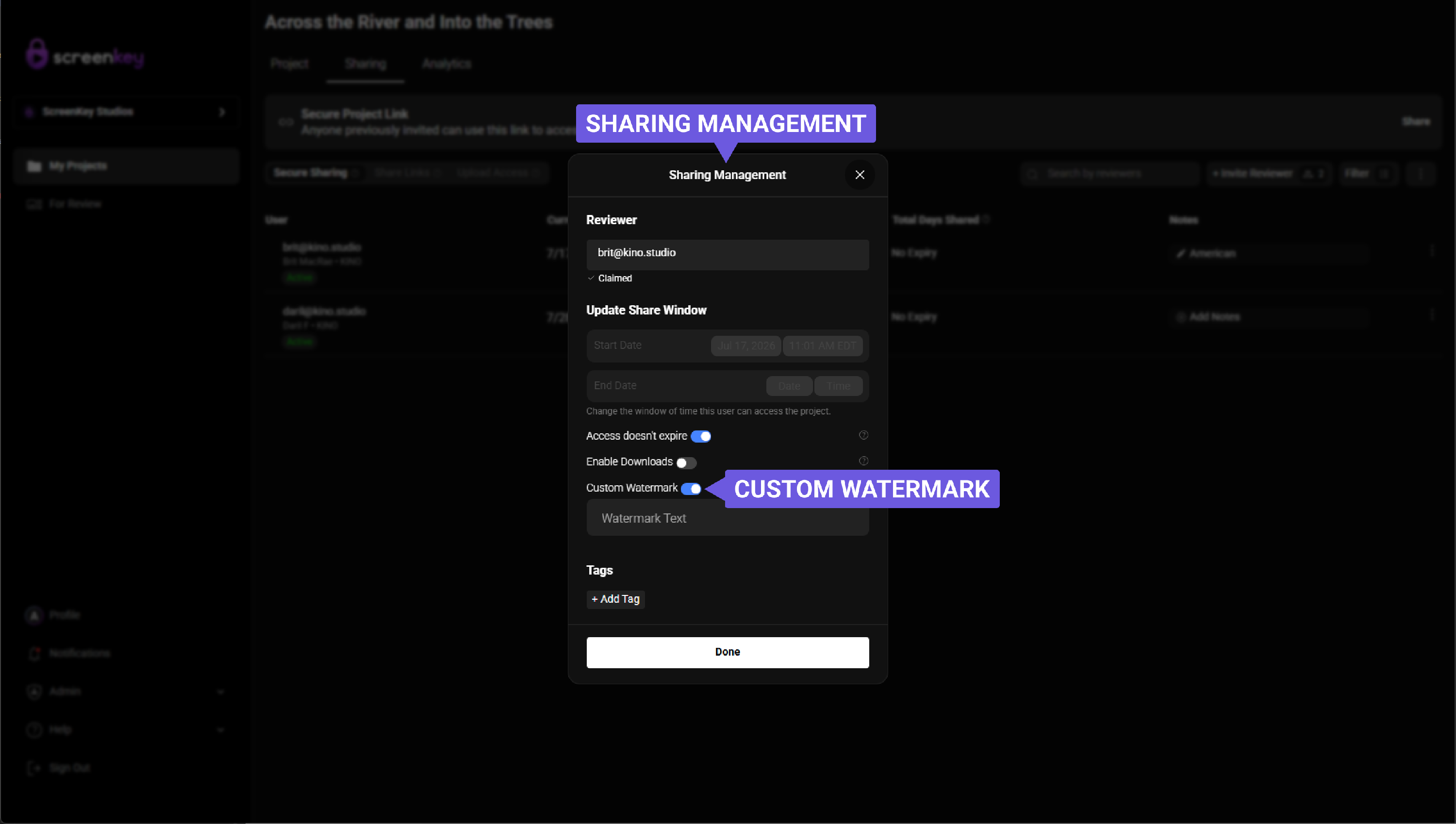
If digital watermarking is enabled for the Project, the Share Link can include a digital watermark.
By default, the watermark uses the Share Link name.
You can customize the watermark by selecting Custom Watermark.
Custom watermarks are useful when you want the watermark to display a specific label, campaign name, recipient group, or other identifying text.
For example, you might use a custom watermark such as:
- Sales Review
- Festival Preview
- Buyer Link
- Internal Screening
- Press Review
Because Share Links can be used by multiple people, Share Link watermarks identify the link or audience group, not an individual viewer.
Copy and send a Share Link
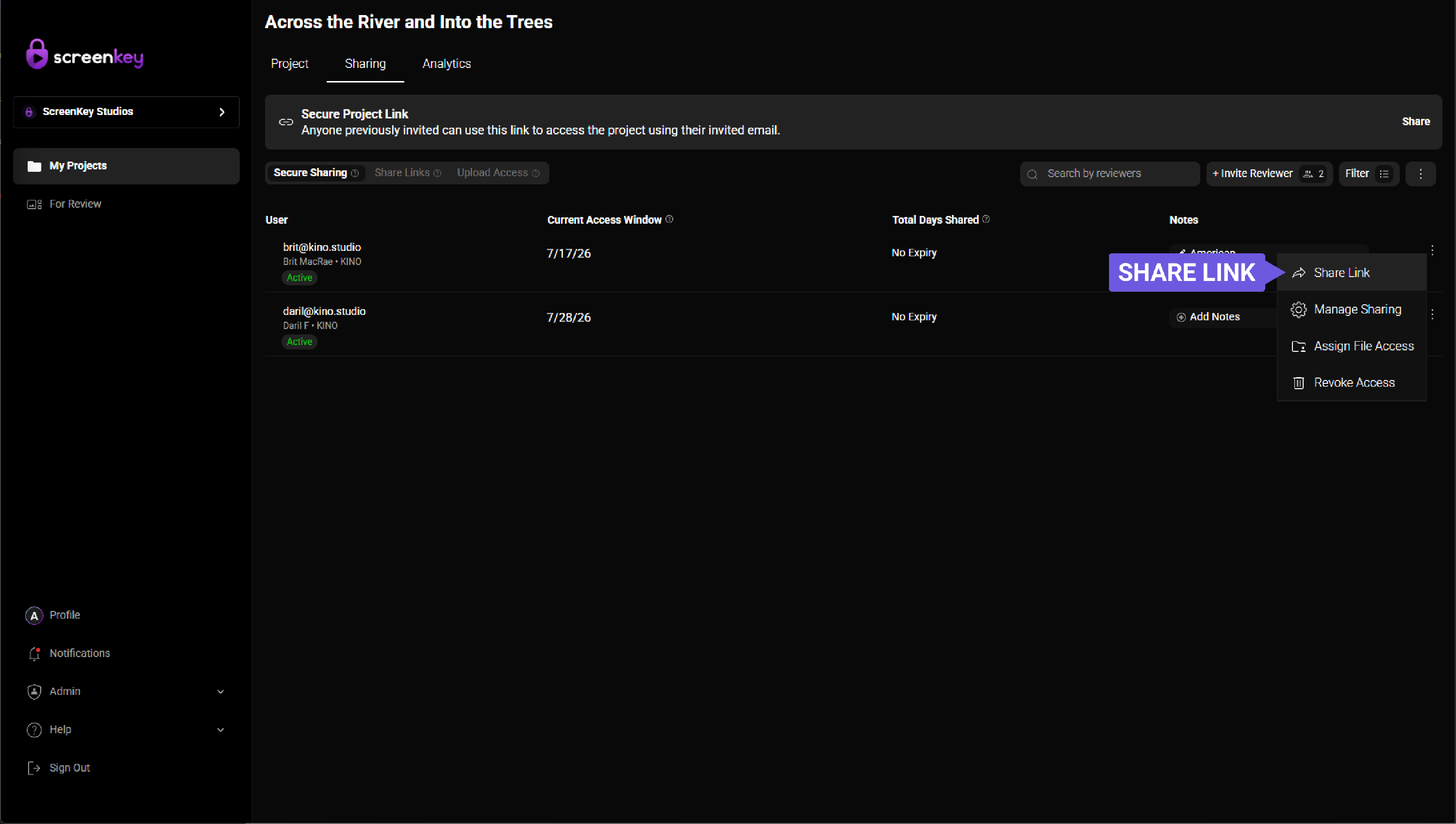
Once the Share Link has been created, you can copy it from the Share Link menu.
To copy a Share Link:
- Open the Project.
- Select the Sharing tab.
- Go to Share Links.
- Find the Share Link you want to send.
- Open the Share Link ellipses menu.
- Select Copy Share Link.
- Paste the link into your preferred email, message, or distribution tool.
Anyone who receives the Share Link can use it, as long as the link is active and they have any required password.
Share Links vs. Secure Sharing
Share Links are different from Secure Sharing.
With Secure Sharing, access is tied to a specific invited Reviewer. The Reviewer must claim the invitation using a ScreenKey account with the same email address the invitation was sent to.
With a Share Link, anyone who has the link can use it. Share Links are easier to access, but they are not as secure.
| Sharing method | Best for | Security level |
|---|---|---|
| Secure Sharing | Named Reviewers who need secure, tracked access | Highest |
| Share Links | Easy access for anyone with the link | Lowest |
Use Share Links when convenience is the priority.
Use Secure Sharing when security, accountability, and individual Reviewer tracking are important.
Best practices
Before creating or sending a Share Link, confirm that:
- The Project is appropriate for link-based access
- You understand that anyone with the link can use it
- The Access Window is set correctly
- Password protection is enabled if needed
- The watermark is correct, if digital watermarking is enabled
- The Project content is ready to be shared
Do not use Share Links for highly sensitive content unless your organization has decided that link-based access is appropriate for that workflow.
Summary
Share Links are the fastest and easiest way to give people access to a Project, but they are also the least secure sharing option.
A Share Link can be used by anyone who has it, including people without ScreenKey accounts. You can set an Access Window, add a password, and customize the watermark if digital watermarking is enabled.
Use Share Links when easy access is more important than person-specific security. Use Secure Sharing when access needs to be tied to individual Reviewers.